Atobe repeater Evaluation Task Function Guidance
Evaluation Task Hall
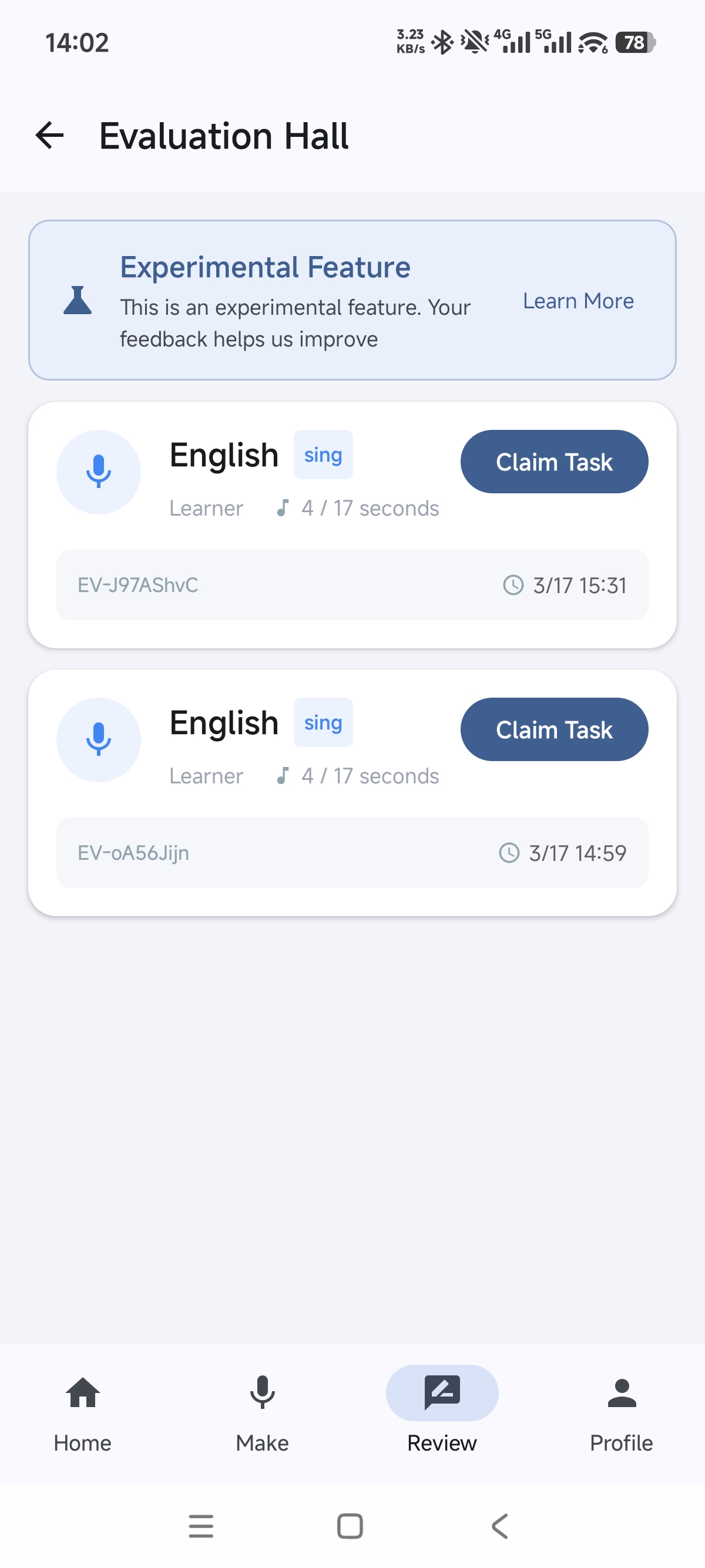
Everyone who comes to the Evaluation Task Hall shares one identity: a 「Reference / Evaluator」.
You can view evaluation requests corresponding to languages you have set as 「Native」 or 「Fluent」 in your language tags.
The hall displays brief task information. You may claim tasks directly, or click on a task card to review 「02 · Basic Task Information」 before deciding to accept it.
Basic Task Information
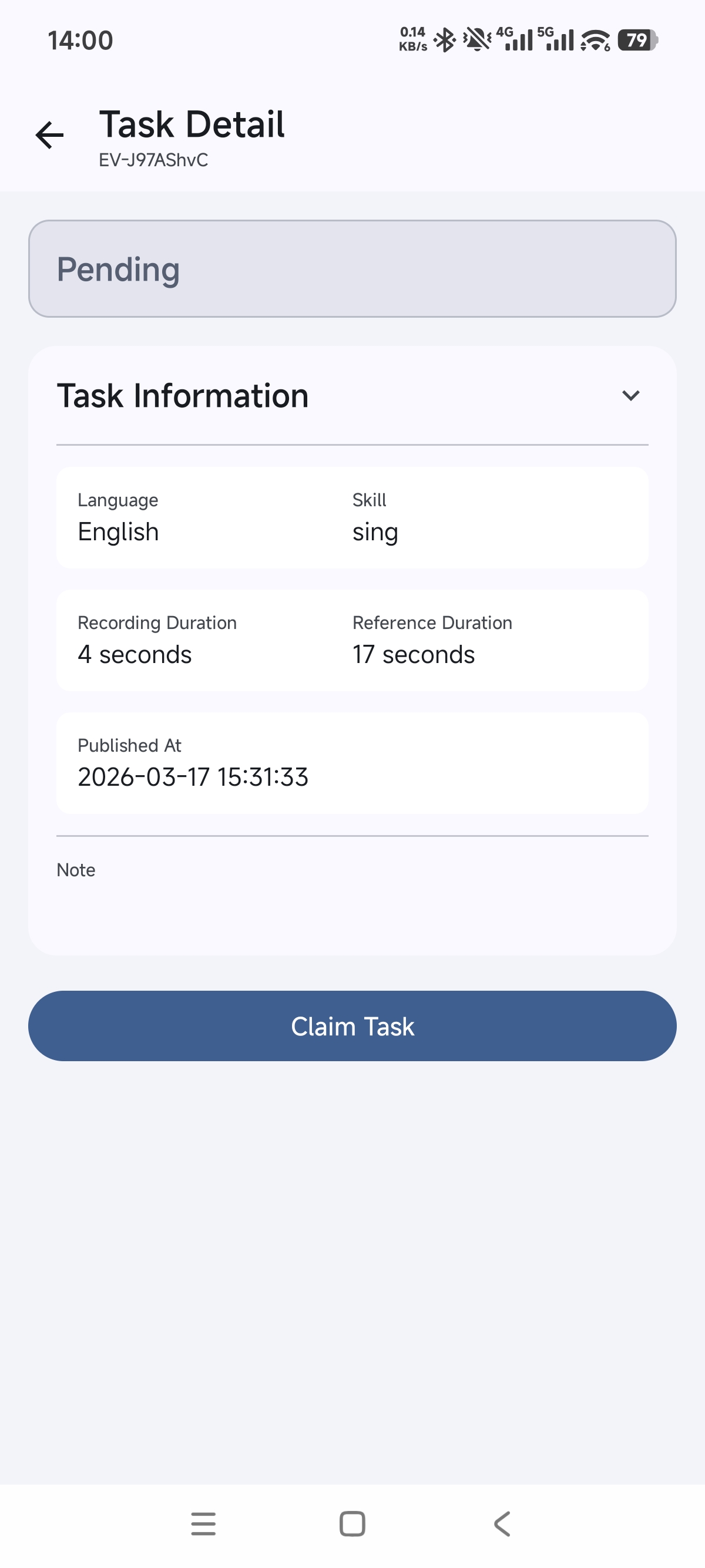
You may review the basic task information before deciding whether to accept it. The media data for the task will only be available for loading after you have accepted the task.
「Reference/Evaluators」 make assessments by comparing the 「Learner's」 imitation audio with the original audio, and are also required to submit their own imitation audio. For details, see 「05 · Completing an Evaluation」.
Once the evaluation is finished, the task will be marked as completed regardless of whether the Evaluator receives thanks. At this point, both the 「Learner」 and the 「Reference/Evaluator」 may choose to cache the task, allowing them to view it again later. For details, see 「07 · Caching Tasks」.
Accept Task Confirmation
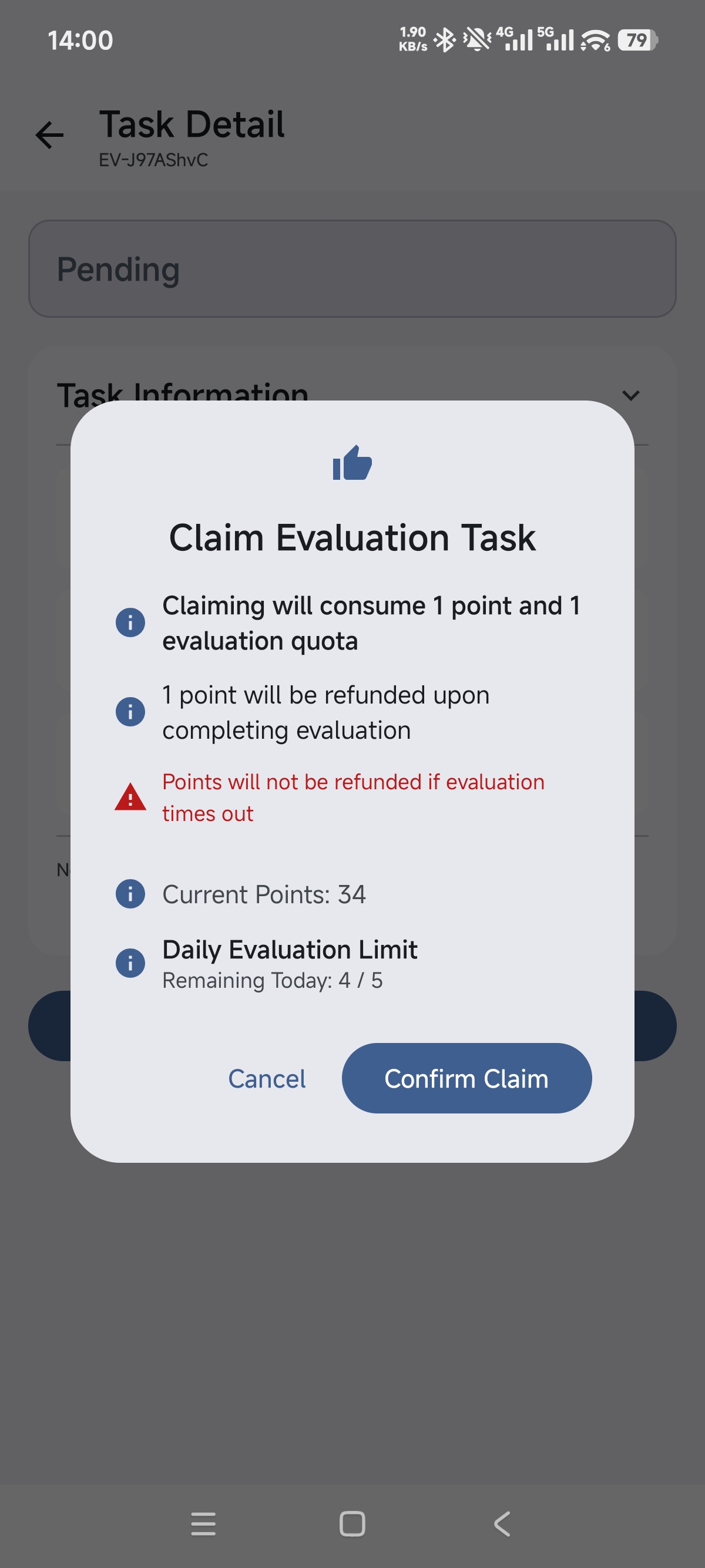
Accepting the task will consume 「1 point (deposit)」 and 「1 evaluation quota」.
After completing the evaluation task, the point will be refunded and you will receive an additional point reward.
The task is time-limited (currently 30 minutes). If you fail to finish it on time, there should be a small penalty :p
The task will then be returned to the Evaluation Task Hall for others to claim.
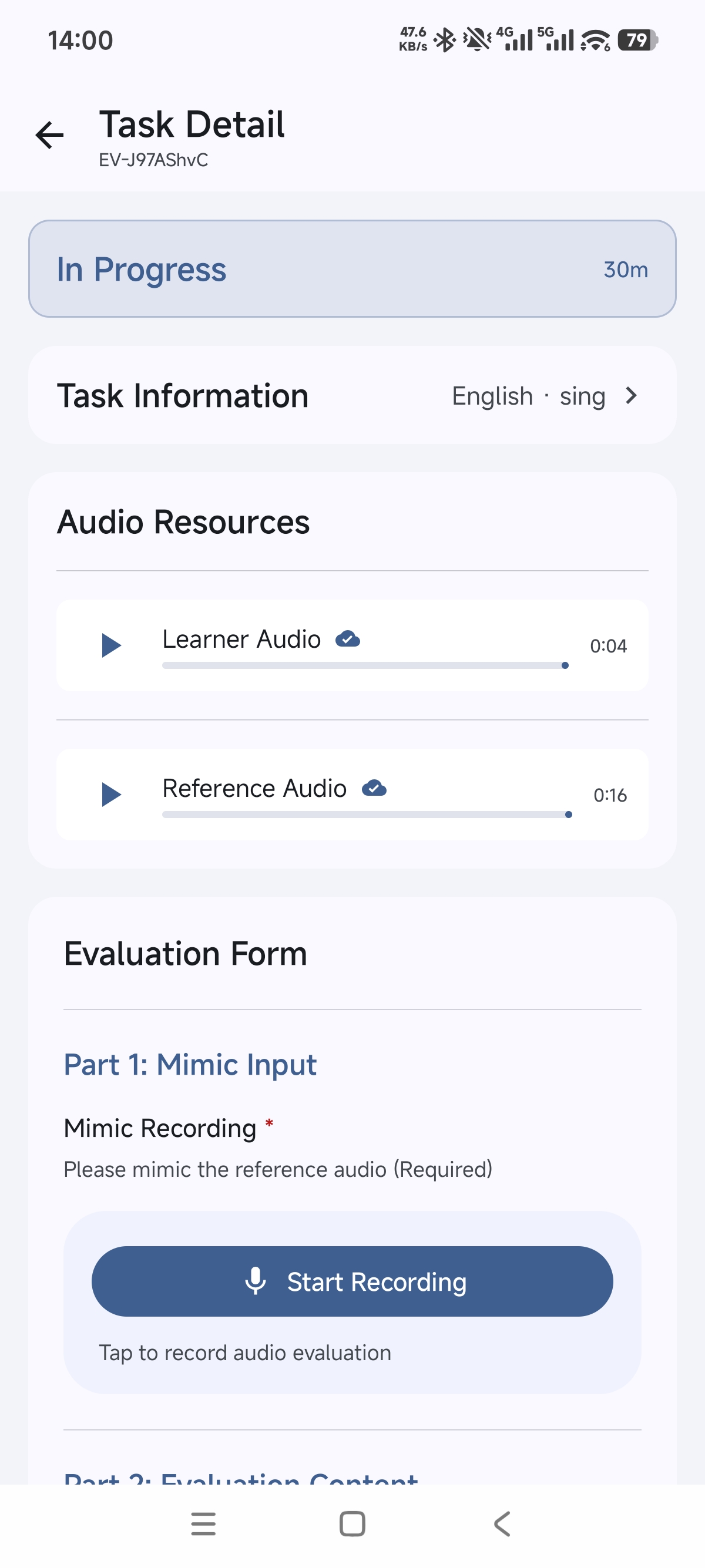
Task Accepted
Tasks you have accepted can be viewed in 「My Tasks」.
In the task details, you can see the time limit, the learner's audio, the reference audio, and the section for the 「Reference / Evaluator」 to complete the evaluation. For details, please refer to 「05 · Completing an Evaluation」.
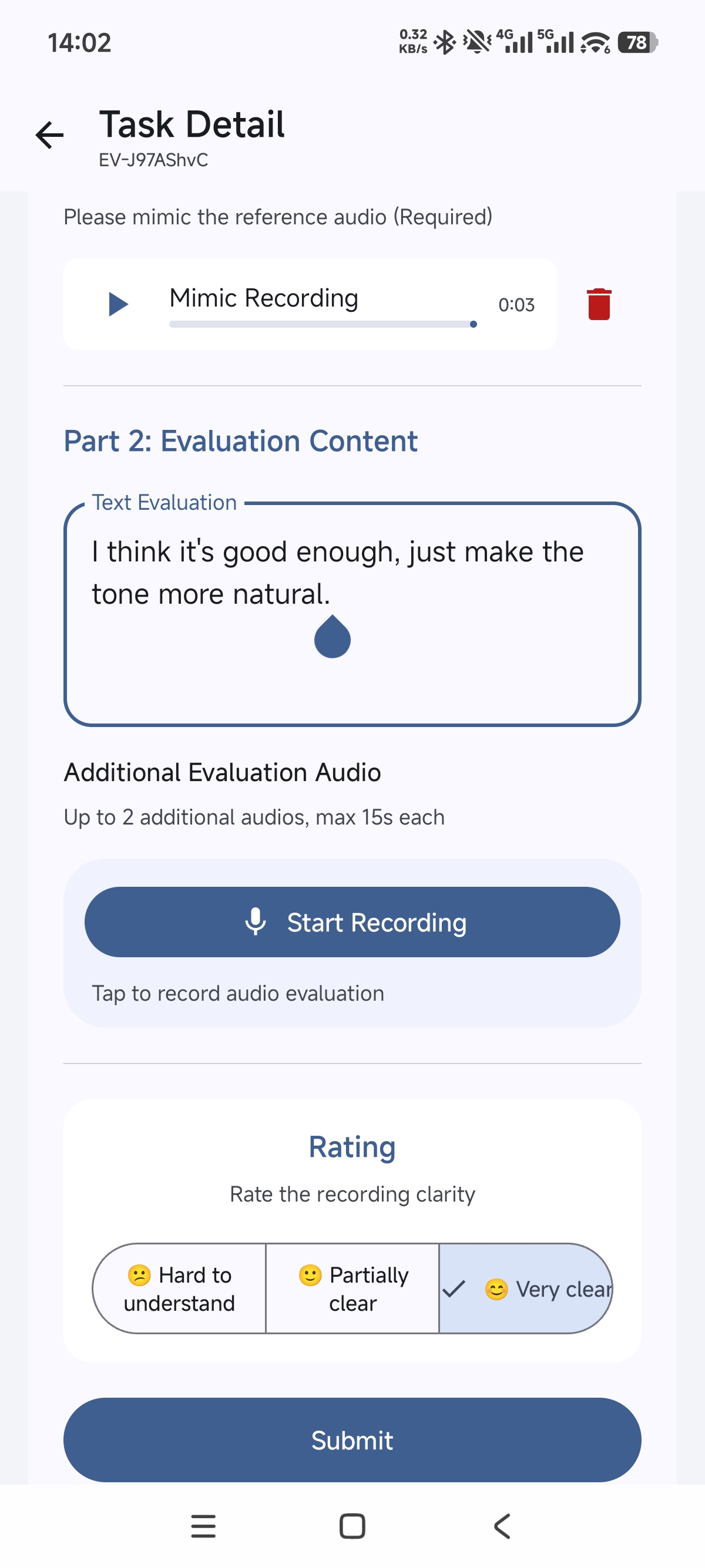
Complete Evaluation
「Reference / Evaluators」 conduct evaluations by comparing the 「Learner's」 imitation audio with the original audio.
The evaluation currently consists of three parts:
1. As a demonstration for the Learner, the Reference / Evaluator imitates the reference audio, providing an additional example that is 「correct but not necessarily perfectly standard」.
2. You may leave a written or audio evaluation in the language the Learner is studying, helping them gain exposure to more natural expressions.
3. Finally, there is a three-option rating. No need to overthink; simply rate based on your genuine impression. We use multi-dimensional criteria to measure whether the Learner has made real progress.
Since all Reference / Evaluators eligible to accept tasks are 「Native or Fluent」 speakers of the target language, and learners are beginners, please imitate confidently and evaluate freely — your feedback is always helpful to the Learner 😄
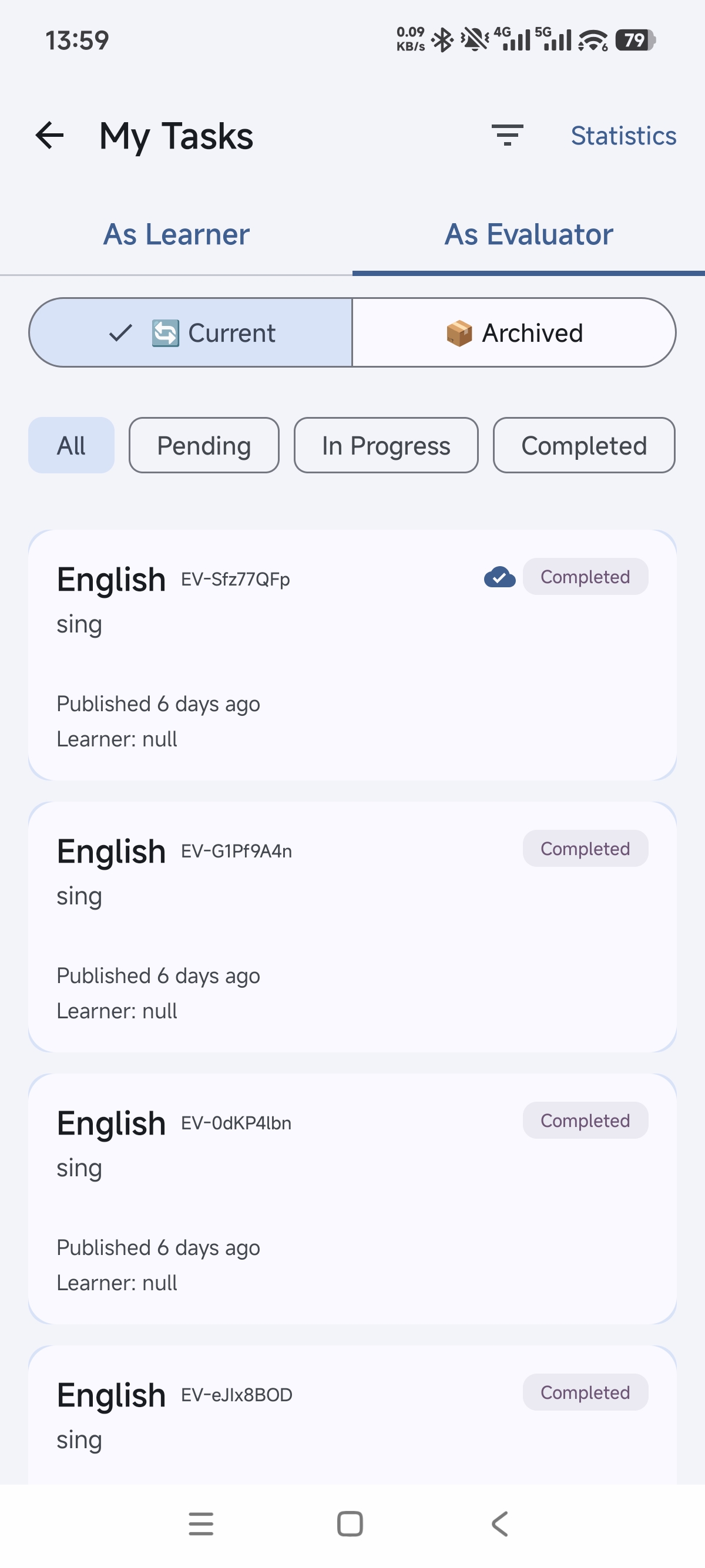
My Tasks
The My Tasks page is accessed via the entry in the 「My Profile」 page.
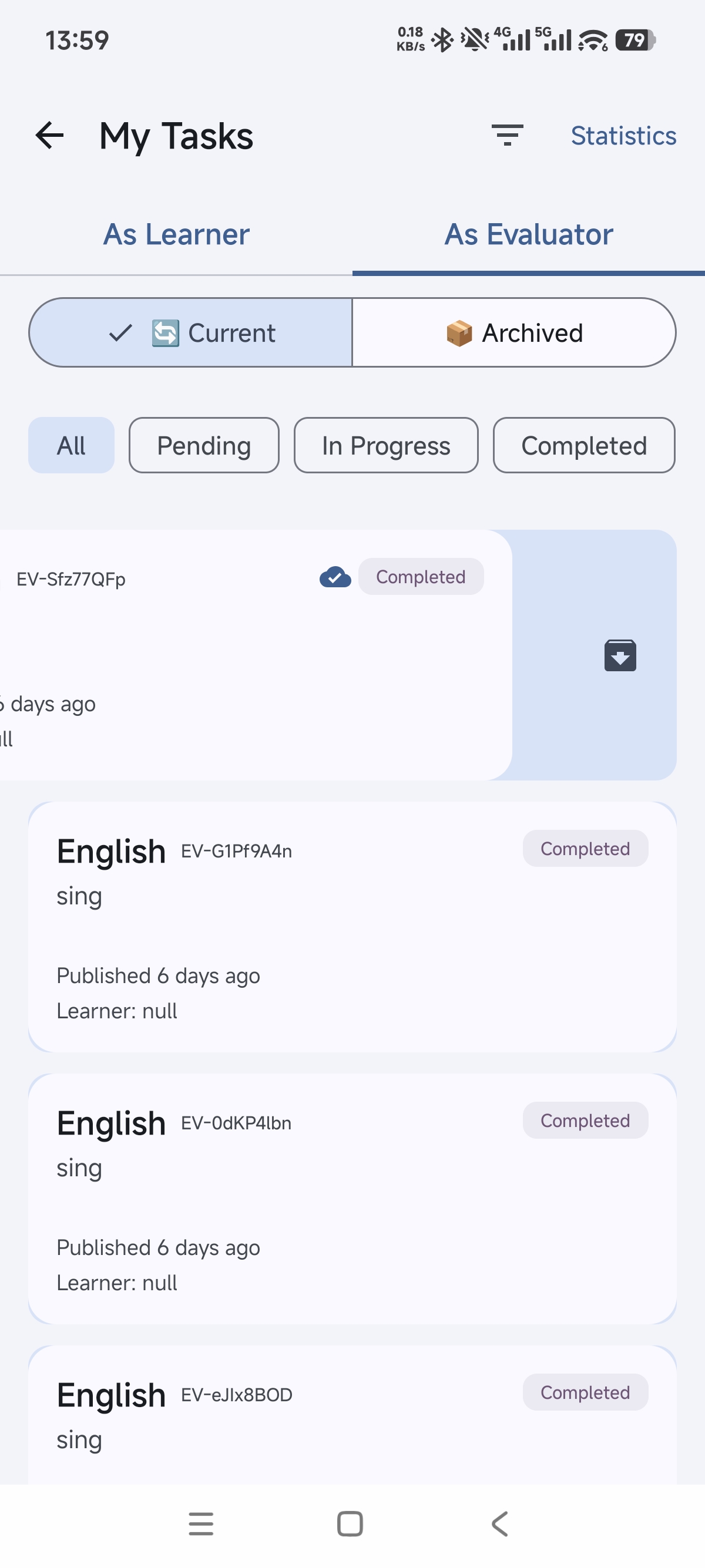
Tabs are used to distinguish between the 「Learner」 and 「Reference / Evaluator」 roles. You can also see separate sections for 「Active」 and 「Archived」 tasks, as well as filter buttons for various task statuses.
Notice that the first button has an extra small icon — this is the indicator for 「07 · Caching Tasks」, which will be explained in detail in that section.
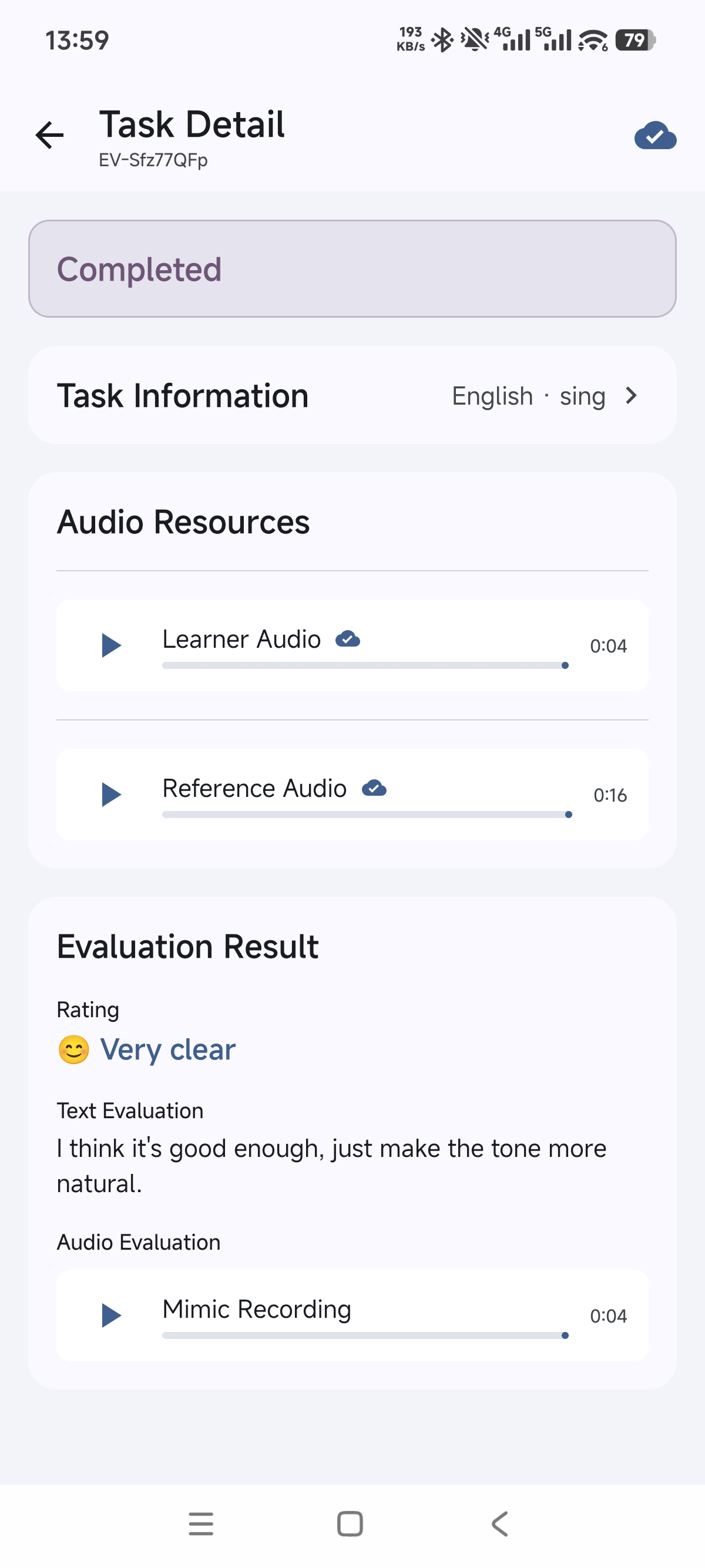
Caching Tasks
This app is designed around the principle of 「user data privatization」: data is stored only on the user’s device, not retained on servers or used for analysis.
Accordingly, an online transit period of approximately 30 days is set, after which data will be cleared.
Therefore, if both users consider a task valuable and worth keeping, they may cache it using the cache button in the upper-right corner.
Once cached, the cache icon will appear as shown in the example. This is also reflected in 「06 · My Tasks」.
Archive Tasks
As the number of tasks gradually increases, an archive function has been added to clearly display tasks during the normal evaluation process. Cached tasks are also identifiable by their special icon.
Instructions:
Swipe the card left to archive it.
Swipe the card left in the archive section to unarchive it.
Ready to start?
Download Atobe Repeater